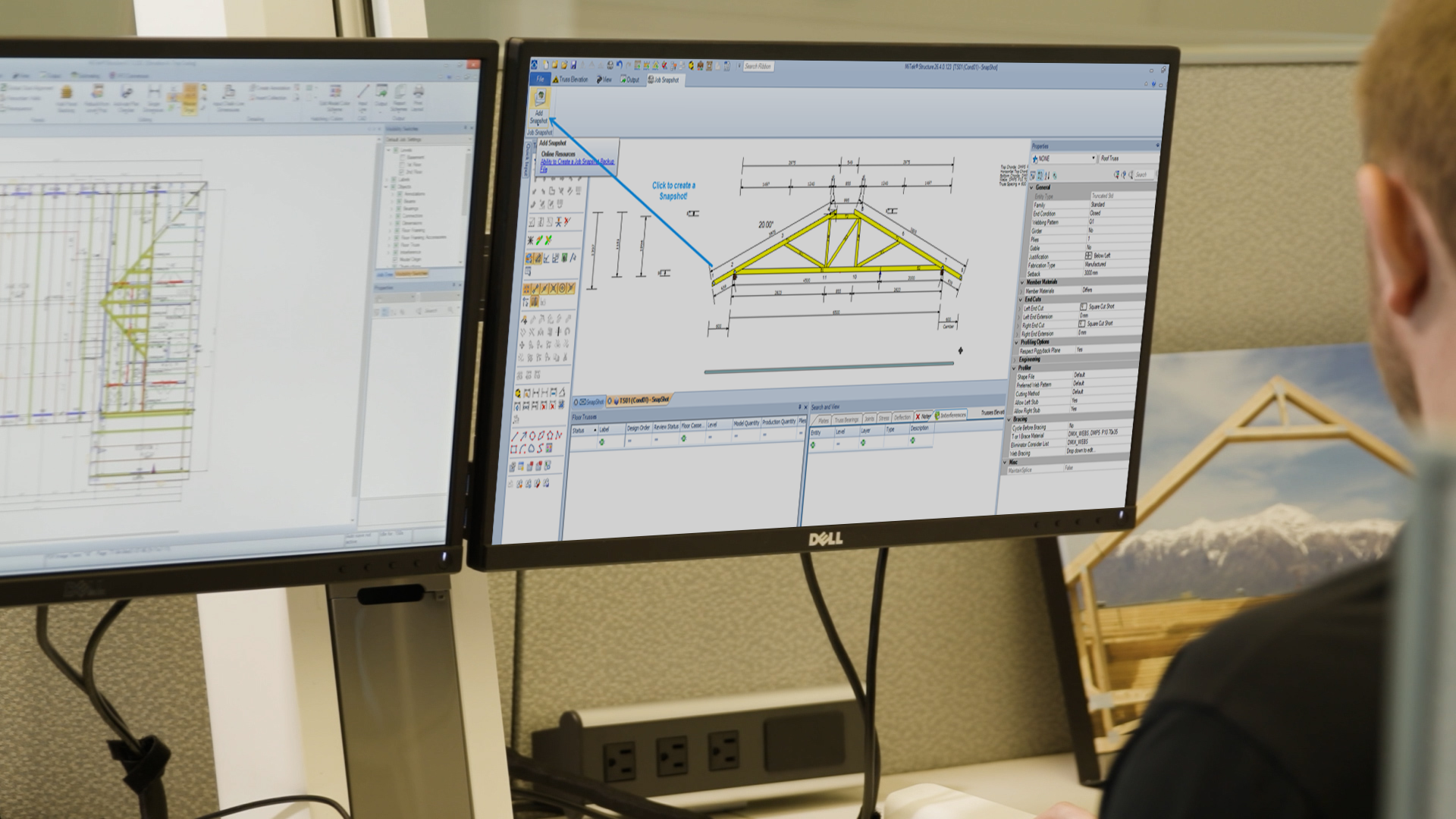
Every designer knows the feeling: you’re deep into a job, everything is engineered and looking good and then you need to make a change, maybe a bearing move, a webbing rebuild, or an adjustment to spacing.
Most of the time, those changes are straightforward. But sometimes they can have a bigger impact than expected, and you may want to go back to an earlier version of the model.
Undo can only take you so far, particularly once you’ve made several changes and continued working.
That’s where having a reliable recovery option gives you a bit more confidence to make those changes, knowing you have a way back if you need it.
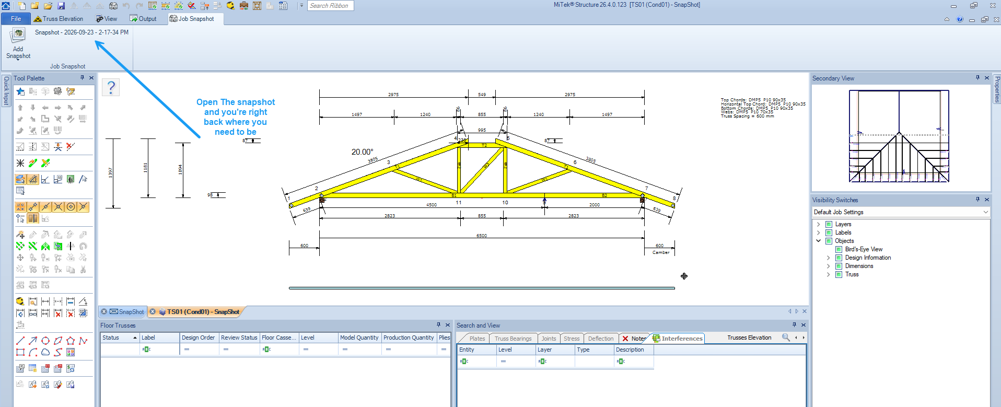
Job Snapshot solves this with a single ribbon click: a full, timestamped, restorable copy of your job, model, geometry and even the views you had open, sitting safely on disk, ready to bring back in seconds.
What Job Snapshot Actually Does
Job Snapshot isn’t a vague “backup” gesture, it’s a purpose-built checkpoint system directly in Structure, a one-click checkpoint. Click Add Snapshot and Structure writes a complete, self-contained copy of your current job to disk, instantly, without interrupting your workflow.

- Remembers your view layout, too.
A snapshot doesn’t just save geometry, it captures which views (Plan, Elevation, 3D) you had open, so restoring a snapshot puts you right back where you were working, not just in a generic Plan view. - Five checkpoints, always at your fingertips.
Structure keeps your 5 most recent manual snapshots available directly from the ribbon dropdown, each one labeled with the exact date and time it was taken, so you always know which one you need. - An automatic safety net, no extra effort required.
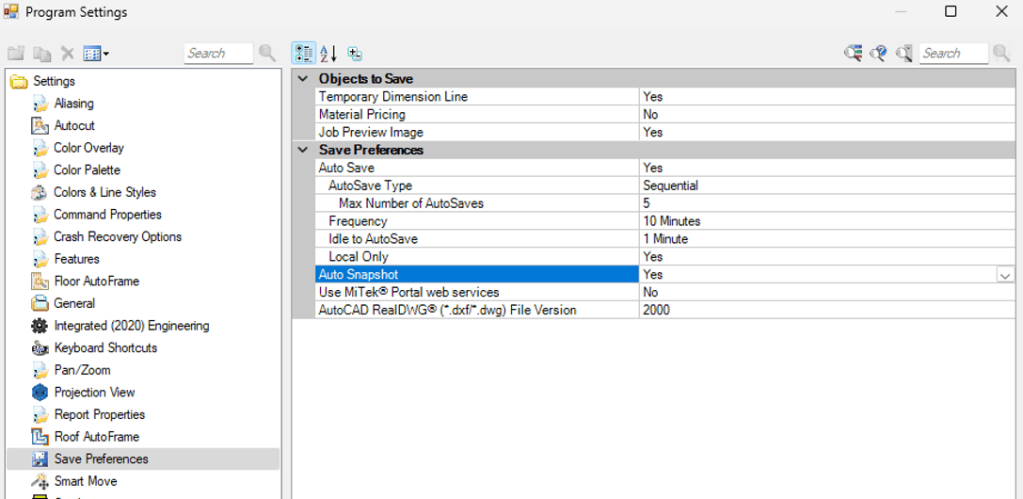
Turn on Auto Job Snapshot and Structure quietly takes a snapshot immediately before every normal save! Guaranteeing you always have “the version right before my last save” available, even if you forgot to create one yourself. - Smart housekeeping.
Once your 5 manual slots are full, Structure doesn’t just let them pile up it tells you exactly which snapshot is oldest and offers to clear a spot for the new one. One command, Clear All Snapshots, wipes the slate clean when you’re done with a job. - Snapshots survive the session.
They are written as real files alongside your job (in a dedicated, clearly named folder), so they are still there for you tomorrow, next week or after the job’s been closed and reopened.
Safe restore, guaranteed. If a snapshot ever fails to load for any reason, Structure automatically falls back to the job you were just working on, you can never get stranded.
How It Works, Step by Step
1. Take a snapshot before you shake things up
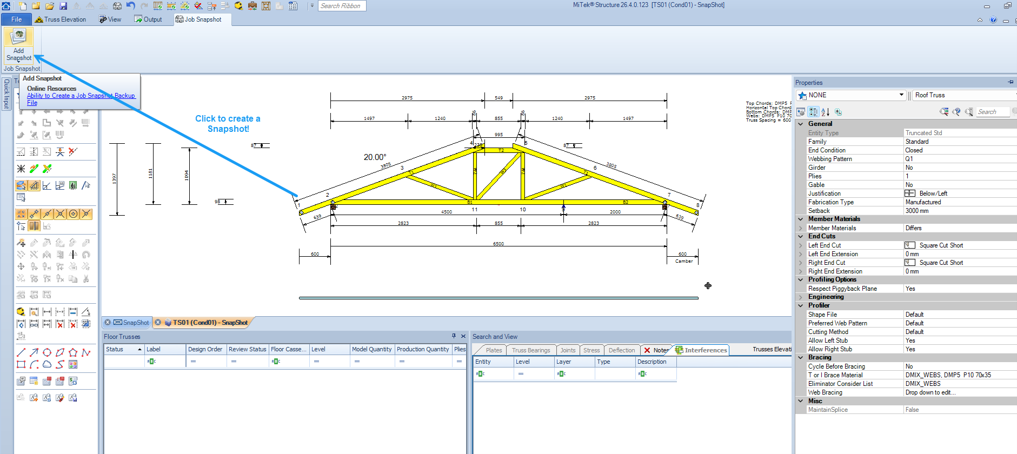
Before making a major truss layout change, running a big redesign, restacking wall panels or handing a job off for review, click Add Snapshot on the ribbon. Structure saves a complete copy in the background.
2. Keep working, worry-free
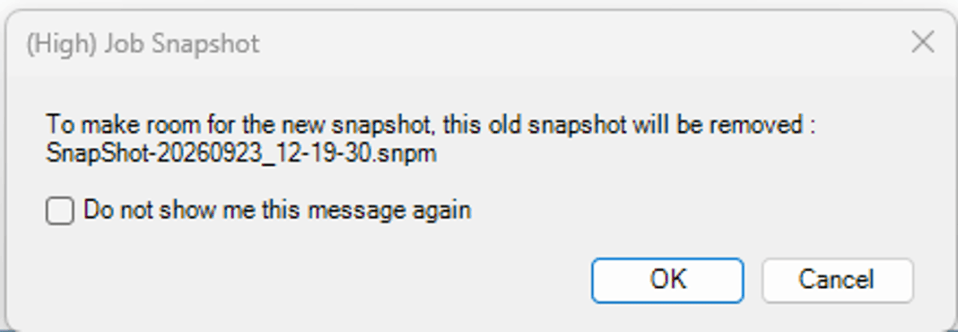
Nothing about your workflow changes. Structure will let you know if a slot needs to be freed up (with a confirmation prompt telling you exactly which old snapshot will be replaced), but otherwise it stays out of your way.
3. If things go sideways, roll back in seconds
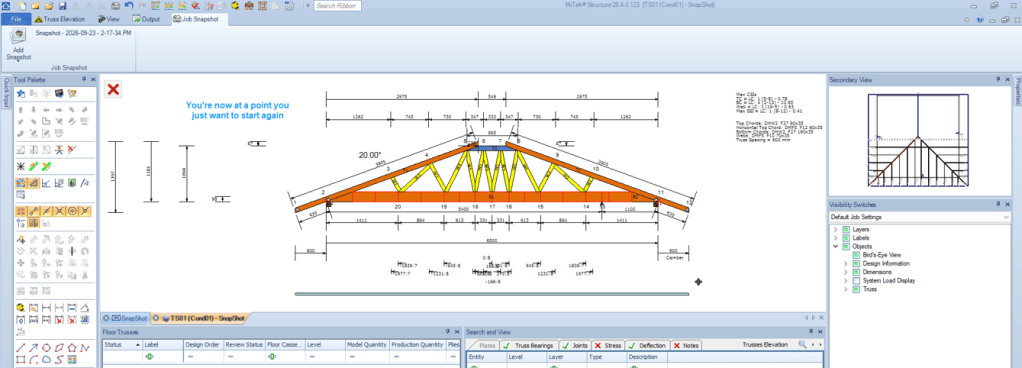
Open the Job Snapshot dropdown, pick the timestamped snapshot you want, and Structure closes the current job and reopens your saved checkpoint, views and all.
4. Let Auto Snapshot cover the gaps
Turn on Enable Auto Job Snapshot in Program Settings and every normal save automatically banks a copy of the job as it existed right before that save, a free extra layer of protection layered on top of your manual checkpoints!
See it in action: watch the full walkthrough here: Structure – Ability to Create a Job SnapShot Backup File | Knowledge | Salesforce