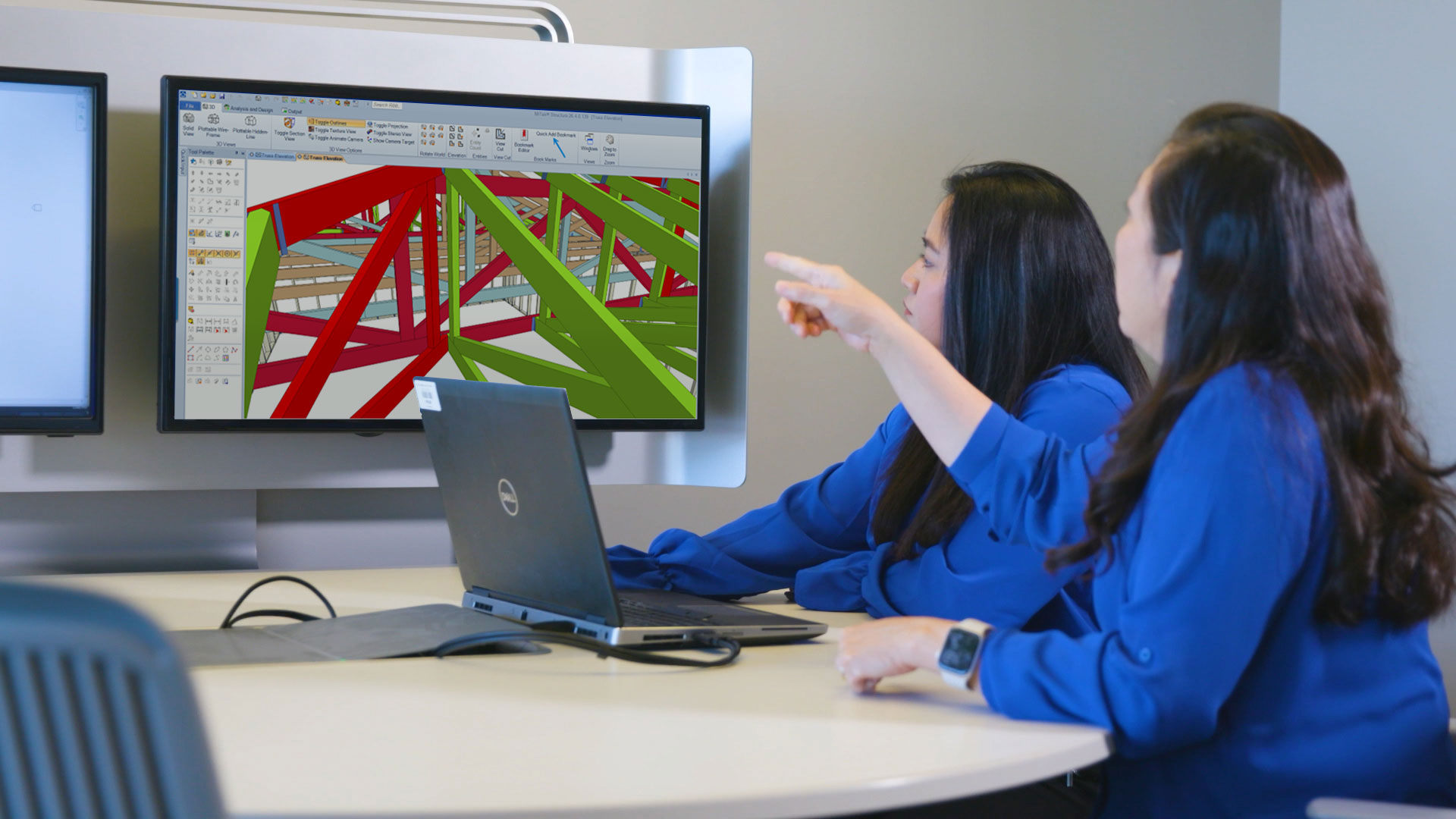
You’ve been working on a complex model, and after plenty of orbiting, panning and zooming, the 3D view finally lands exactly where you want it: the perfect angle on that connection detail, or the heel detail you need to check or show the builder on review.
Then the next time you need that view, getting back to it is nearly impossible, or at least a time-consuming exercise in trial and error.
Before long you’re sitting there thinking, “that was painful, I wish I could just bookmark this 3D view and come straight back to it.”
Good news: that feature already exists in Structure! Let’s see how easy it is to use.
What Bookmarks Actually Do
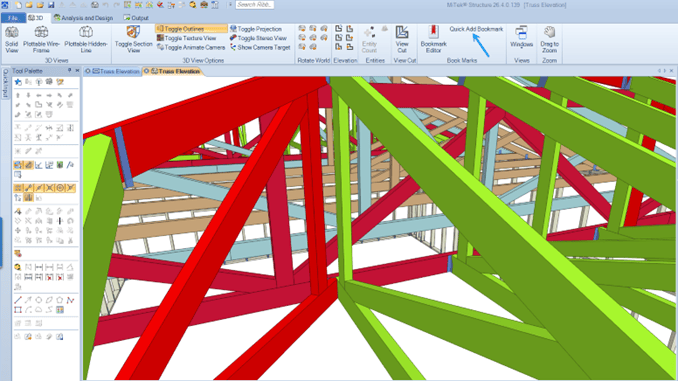
A bookmark saves a 3D view so you can return to it whenever you need it, in a click. You’ll find the tools in the 3D ribbon, in the Bookmark group, which contains two tools: Quick Add Bookmark and Bookmark Editor.

- Two ways to create a bookmark. Capture a view instantly with Quick Add Bookmark, or add one from inside the Bookmark Editor.
- Name them to suit. Rename each bookmark so it describes what you captured, such as “Heel detail” or “Gable connection”.
- One right-click to get back. Right-click any bookmark in the editor and choose Restore, and your 3D view is loaded again.
- Saved with your job. Bookmarks are stored with the job, so they’re still there the next time you open it.
Close the model, reopen it next week, and your perfect view is still waiting for you
How It Works, Step by Step
Set up the view you want to keep
Switch to the 3D view and position the model exactly how you want it, whether that’s a close-up of a connection or the heel detail you keep returning to. With the 3D view active, the 3D ribbon shows the Bookmark tools.
Create your bookmark, the quick way
Click Quick Add Bookmark on the 3D ribbon, and that’s it! Your view is captured. Don’t see the tools in your ribbon? You can add them using the Customize the Quick Access Toolbar option.
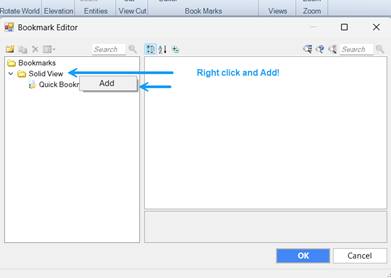
Or create one from the Bookmark Editor
Open the Bookmark Editor, right-click the Solid View folder and choose Add. It’s just as simple, and keeps everything in one place.
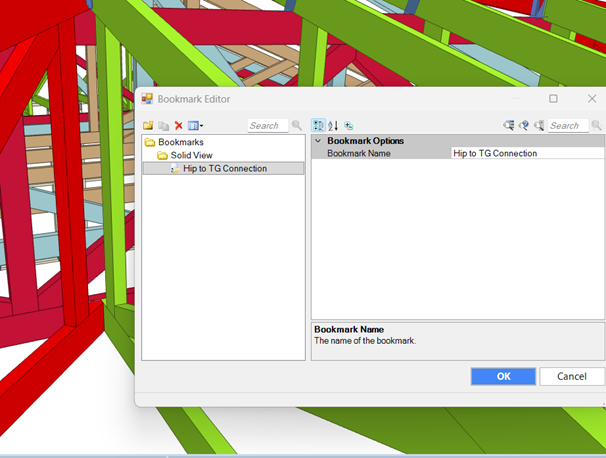
Rename it to suit
Open the Bookmark Editor to see the bookmark you just created, then rename it so it clearly describes the view you captured. Meaningful names make it much easier to find the right view later in a busy job.
Restore your perfect view
When you want to go back, right-click the bookmark in the Bookmark Editor and choose Restore. The saved 3D view is loaded again, exactly as you left it.
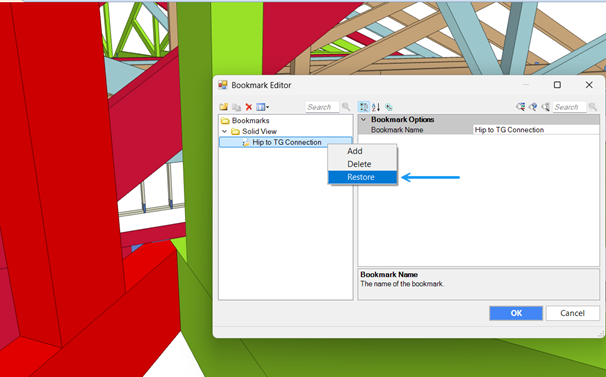
Don’t worry about losing them: bookmarks save with your job! So you can close the model and reopen it straight to that perfect view whenever you need it.
Stop hunting for the perfect view. Bookmark it once, and let Structure take you back.